
Dashboard Overview
Your Dashboard is your home page - it gives you a quick snapshot of all your buying, selling, and fulfilment activity in one place.
Accessing Your Dashboard
Click "Dashboard" at the top of the left menu or "Overview" from the left hand menu.
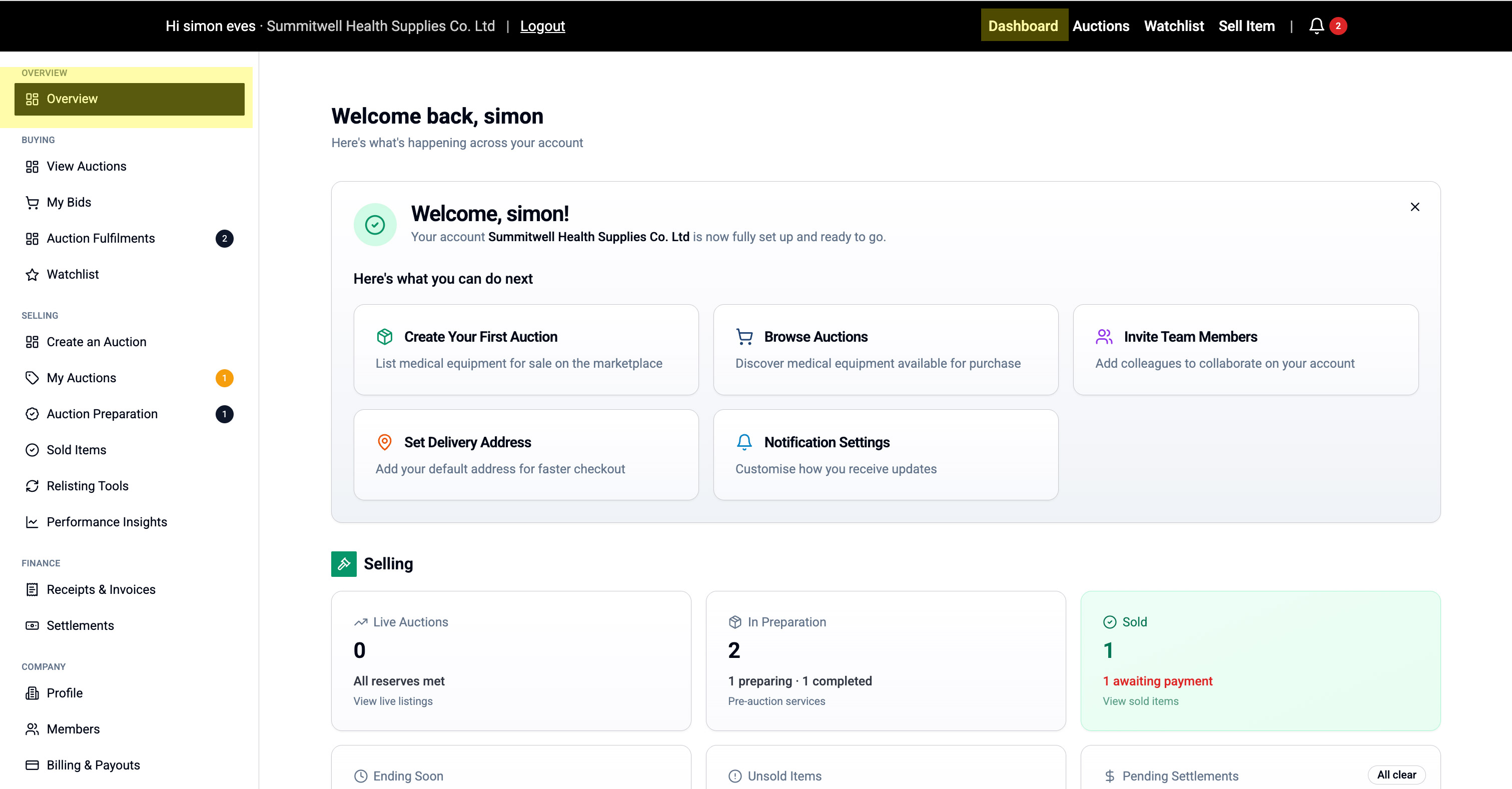
Dashboard Sections
1. Quick Links Panel
When you first complete onboarding, you'll see helpful shortcuts:
- Create Your First Auction
- Browse Auctions
- Invite Team Members
- Set Delivery Address
- Notification Settings
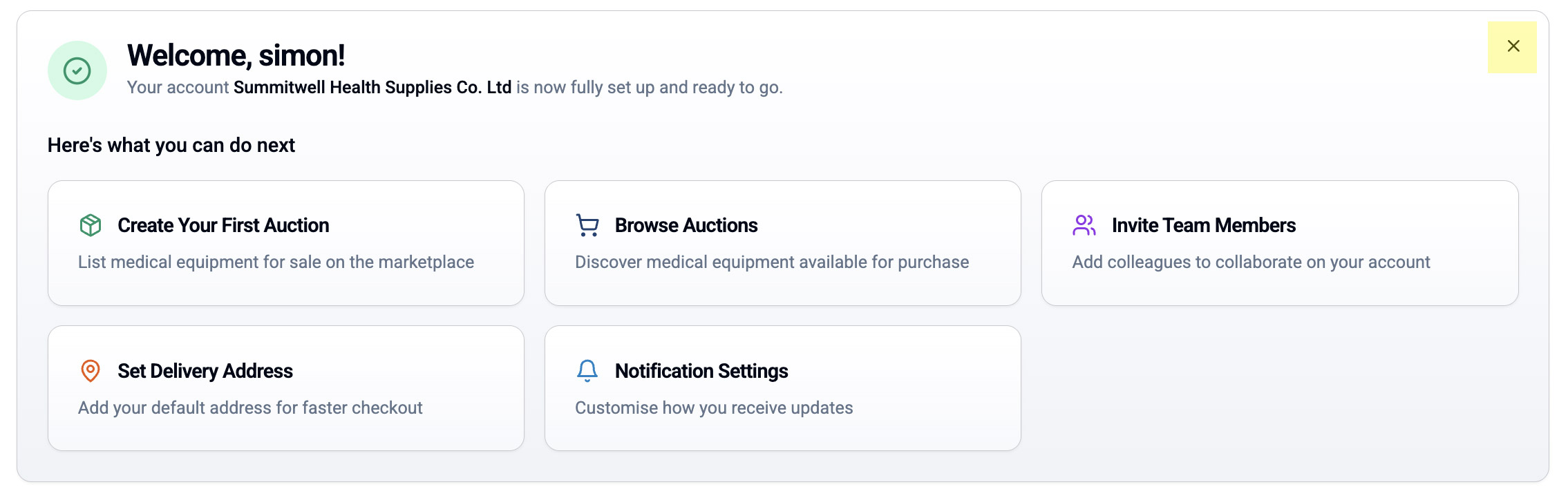
Once you're familiar with the platform, click the X to hide this panel.
2. Selling Summary
Shows the status of your listings:
Metrics displayed:
- 📋 Live Auctions - Currently accepting bids
- ⏱️ In Preparation - Awaiting verification/approval
- ✅ Sold - Auctions that ended successfully
- ⏰ Ending Soon - Closing within 24 hours
- ❌ Unsold - Reserve not met / no bids
- 💰 Ready to Settle - Awaiting payout
Financial Summary:
- 💷 Projected Revenue - Total value of active auctions
- ⚠️ Revenue at Risk - Auctions without bids or below reserve
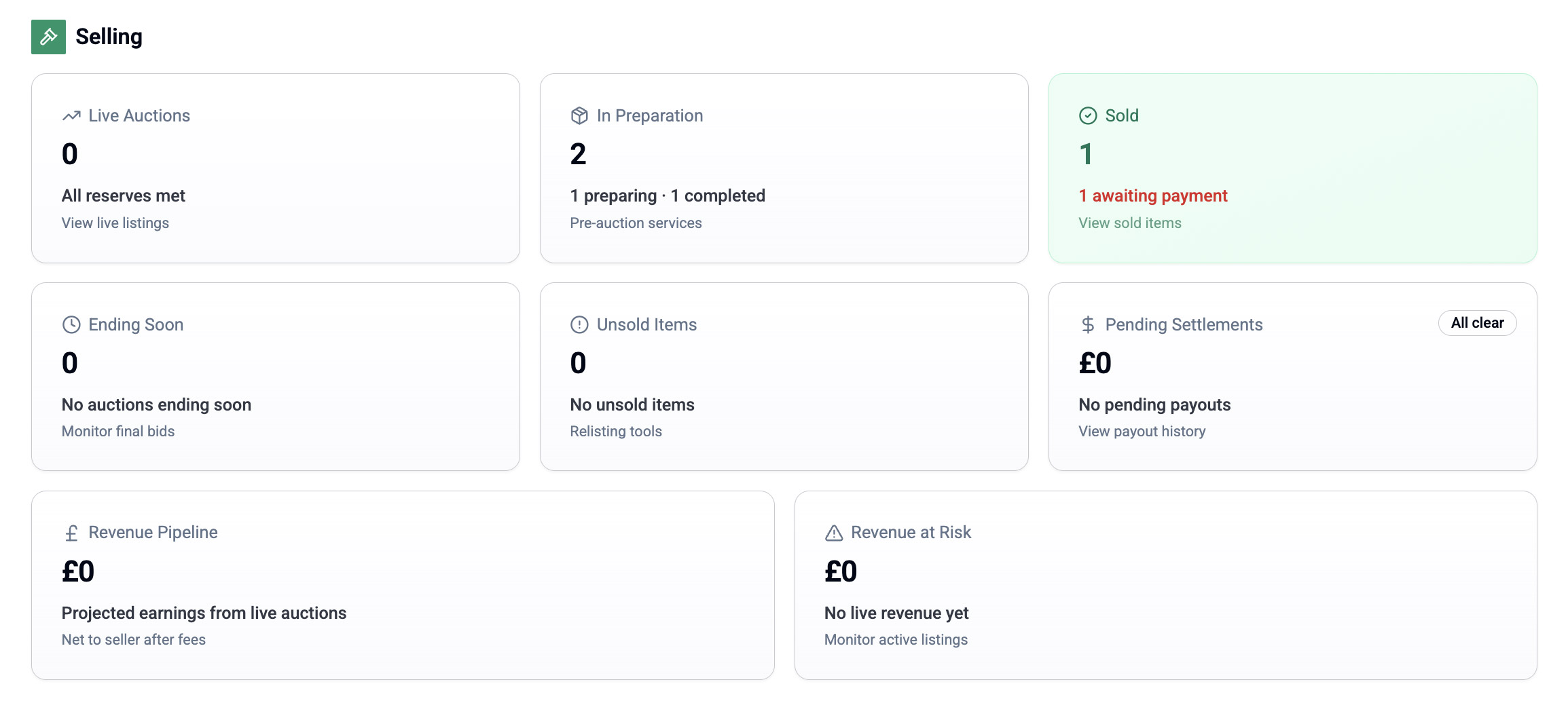
Click any metric to see detailed listings.
3. Buying Summary
Shows your bidding activity:
Metrics displayed:
- 🏆 Winning Bids - You're currently highest bidder
- 📉 Outbid - Someone bid higher
- 🤖 Active Autobids - Autobidding is enabled
- ⭐ Watchlist Ending Soon - Saved items closing soon
- ⏳ Won - Awaiting Payment - You won but haven't paid yet
- 📦 In Fulfilment - Items being deinstalled/delivered
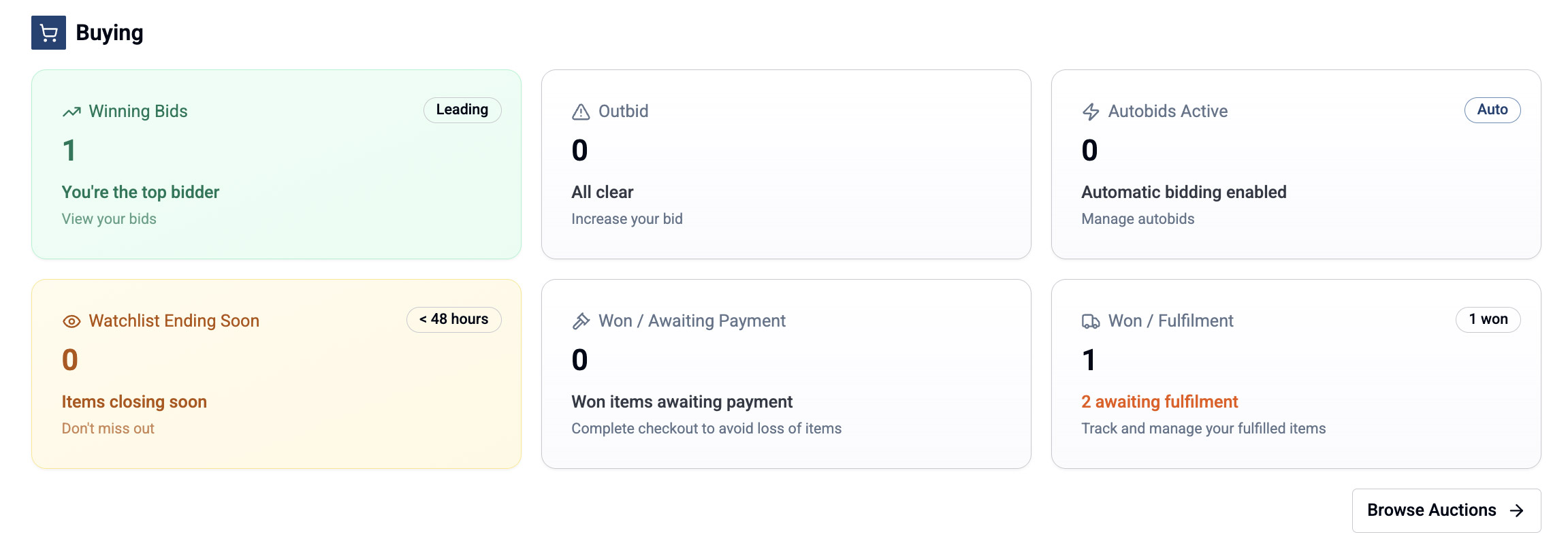
Click any metric to see detailed listings.
4. Notifications
Recent notifications appear in the Dashboard:
- Bid activity
- Auction approvals
- Payment confirmations
- Delivery updates
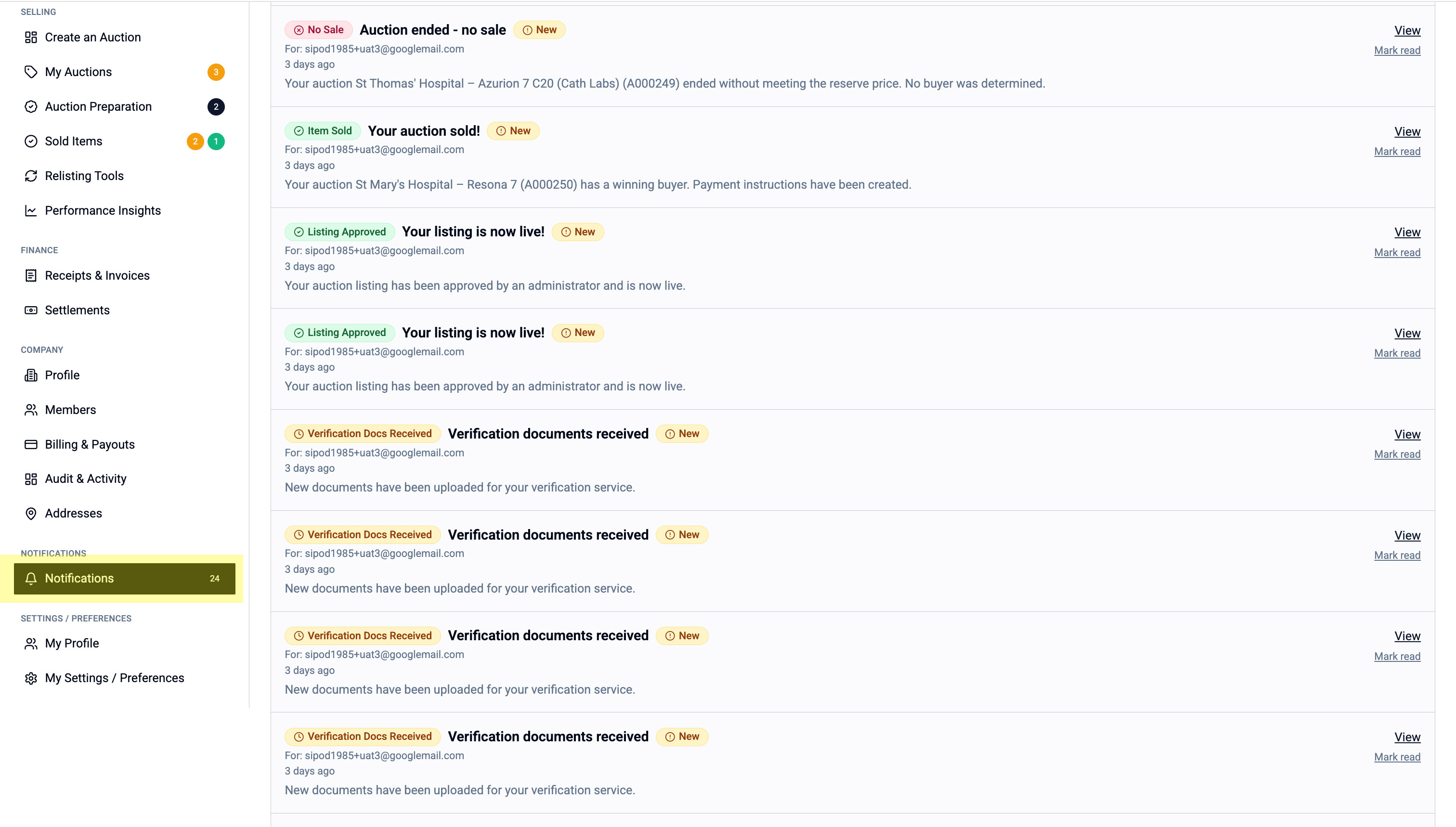
Click "All Notifications" to see your full notification history.
5. Footer Shortcuts
Quick links at the bottom:
- 📄 Receipts & Invoices - View financial documents
- 🔔 All Notifications - Full notification history
- 🏢 Company Profile - Edit company details
- ⚙️ Settings - Manage preferences
Understanding Notification Badges
Red badges with numbers appear on:
- 🔔 Bell icon (top right) - Unread notifications
- Left menu items - Items requiring action
Click to see what needs your attention.
Dashboard Tips
Use it as your daily starting point:
- Check for outbids or auction endings
- Monitor your selling performance
- See what needs payment or action
- Quick access to common tasks
Customise your view:
- Hide the Quick Links panel once familiar
- Use filters on individual pages for detail
- Set notification preferences for real-time alerts
💡 Tip: Bookmark the Dashboard for quick daily access - it shows everything you need at a glance.