
Notification Preferences
Control what notifications you receive and how. Choose between email, in-app alerts, SMS, and browser push notifications.
Accessing Notification Settings
Go to My Settings / Preferences in the left menu
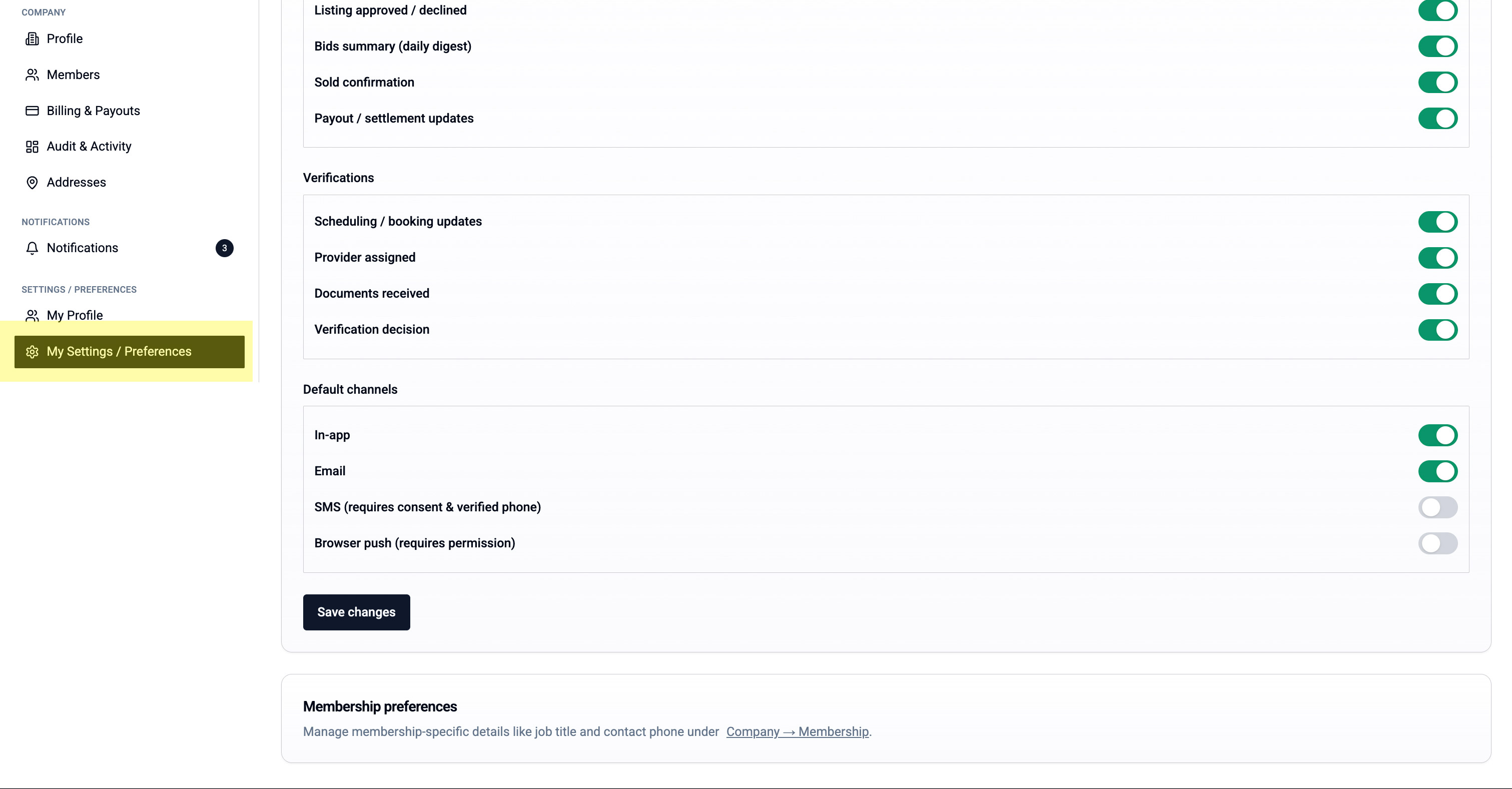
Notification Categories
Global Preferences:
- Product announcements & platform updates
- Marketing emails & tips
Buyer Notifications:
- Outbid notifications
- Auction ending reminders
- Won item confirmations
- Payment receipts
- Transport/delivery updates
Seller Notifications:
- Listing approved/declined
- Bid activity summaries (daily digest)
- Item sold confirmations
- Payout/settlement updates
Verification Notifications:
- Inspection booking updates
- Provider assigned
- Documents received
- Verification decision
Choosing Notification Channels
For each notification type, choose how you want to receive it:
Available Channels:
- In-app - Shows in your Meditech dashboard (bell icon)
- Email - Sent to your registered email address
- SMS - Text message (requires phone verification)
- Browser Push - Desktop notifications (requires permission)
Default Settings:
- In-app: ON
- Email: ON
- SMS: OFF (opt-in)
- Browser Push: OFF (requires consent)
Recommended Settings
For Active Buyers:
- Enable "Outbid" notifications via Email AND In-app
- Enable "Auction Ending" reminders
- Enable SMS for last-minute auction alerts
For Active Sellers:
- Enable "Bid Activity" daily digest via Email
- Enable "Item Sold" via In-app and Email
- Enable "Payout" notifications
Saving Your Preferences
After making changes:
- Scroll to the bottom of the page
- Click "Save Changes"
- You'll see a confirmation message
💡 Tip: You can update these settings anytime. Changes take effect immediately.